
Mask by brightness
A luminance range mask selects pixels by how bright they look. Use it to darken only the highlights, open up only the shadows, or confine a color tweak to the midtones.
Make a luminance mask
Section titled “Make a luminance mask”- Click the Range button next to Layer in the Layers pane (hover to see its name) to start a new layer with the mask. To add the mask to an existing layer, right-click the layer and choose Add Mask (or Add, if it already has masks), then Luminance Range.
- The new mask starts on the highlights. The mask overlay turns on so you can see the selection.
- Shape the band with the Luminance control in the mask’s card.
- Adjust the sections on the right. They reach only the tones you selected.

Shape the band
Section titled “Shape the band”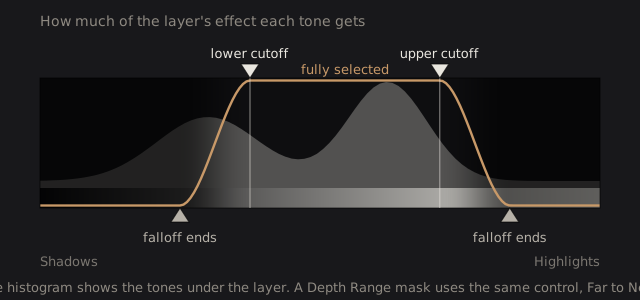
The control is a strip from Shadows on the left to Highlights on the right. A histogram behind it shows where the tones of the layer’s input sit. It has four keys:
- The two keys on top are the cutoffs. Everything between them is fully selected.
- The two keys on the bottom set where the falloff on each side reaches zero. A wider falloff gives a softer, more natural edge.
| Gesture | What it does |
|---|---|
| Drag a top key | Moves that cutoff and carries its falloff key along |
| Alt-drag a top key | Moves the cutoff alone and leaves the falloff key in place |
| Drag a bottom key | Sets how wide that side’s falloff is |
| Drag inside the band | Slides the whole band |
| Click the strip outside the band | Jumps the nearer cutoff there and keeps dragging |
| Shift while dragging | Fine adjustment |
| Double-click | Resets the band |
A readout above the strip gives the two cutoffs and the two falloff widths as numbers from 0 to 100.
To select everything except a band, click Invert in the mask’s card.
Technical details: what the axis is
The axis is perceived lightness (the L value of the Oklab color space) computed from the photo in linear light, not raw light energy. That spreads shadows, midtones and highlights across the strip the way your eye sees them, instead of bunching nearly everything into the shadows.
The mask is 1 between the cutoffs and ramps down to 0 across each falloff with a smooth S-shaped curve. It is computed live from the pixels the layer receives, which are the result of the Base and the layers below it. So if you change the exposure on the Base, the tones this mask selects move with it. There is no AI step, and nothing is saved besides the band’s numbers.