
Make virtual copies
A virtual copy is a second catalog photo of the same file. It has its own edits, rating, label and keywords, so you can try a black-and-white version or a different crop without touching the first. The file on disk is never duplicated.
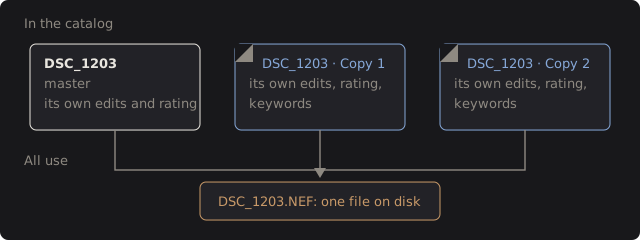
Make a copy
Section titled “Make a copy”Select a photo and choose Image › Create Virtual Copy, press Shift+C (by default), or right-click the photo and choose it. In Edit, the same works on the photo you are editing, and Edit opens the new copy.
Select several photos to make a copy of each. A copy of a copy is a copy of the original photo, which DarkRay calls the master.
Each new copy:
- is named Copy 1, Copy 2 and so on, using the lowest number that is free;
- starts with the source photo’s current edits, rating, flag, color label, caption and keywords;
- joins the collection you are viewing, if it is a regular collection;
- joins its master’s stack, right after the master’s last copy, and that stack opens so you can see it;
- is selected when it appears.
Image › Undo removes a copy you just made.
Recognize a copy
Section titled “Recognize a copy”A copy has a folded corner at the top left of its thumbnail. Its file name is in italics and blue,
followed by its copy name: DSC_1203 · Copy 1. Hover for “Virtual copy of DSC_1203.NEF: Copy 1”. You
can find all copies with the search word copy.
In the info panel, a copy shows its name in an editable Copy field and a Master link that selects the original.
Rename a copy
Section titled “Rename a copy”Type in the Copy field in the info panel, or select the copy and press F2 (by default). That renames the copy, never the file. F2 on a master renames the file, and its copies follow. See Move and rename.
Swap master and copy
Section titled “Swap master and copy”Select a copy and choose Image › Set Copy as Master. The two swap roles: the old master becomes a copy under the copy’s old name, and the new master becomes the stack’s cover.
What a copy shares with its master
Section titled “What a copy shares with its master”A copy has its own edits, undo history, rating, label, keywords, collections, Quick Collection state and export. It shares the file, and so:
- Moving, renaming or locating the file acts on the master, and the copies follow.
- A copy is never missing on its own; if the file goes missing, all of them do.
- Removing a copy alone needs no confirmation and Undo brings it back. Removing a master removes its copies too, and the dialog counts them separately. See Remove photos.
- Exporting names the file with the copy:
DSC_1203 Copy 1, so versions never overwrite each other. - Choosing a master and its copy together for a merge counts the file once.
Importing never makes copies: a file already in the catalog stays one master.
Technical details: how copies are stored
A virtual copy is a catalog row with a link to its master and a copy name. The file columns (path, size, camera data, place) belong to the master and are mirrored to its copies automatically, so anything that changes the master’s file, such as a sync or a move, reaches its copies. A new copy keeps the AI mask results of its source, since the file is the same.