
Keep folders in step with the disk
The Folders section of the left panel mirrors your drives. DarkRay watches the folders you added and keeps the catalog true when files are moved, renamed, changed or deleted outside DarkRay. It never adds new files on its own: a photo enters the catalog only when you import it or approve it here.
Add a folder
Section titled “Add a folder”Choose File › Add Folder…, or click + in the Folders header, and pick a folder. DarkRay reads it and lists what it found. Click Add to catalog those photos where they are. Cancel leaves nothing behind.
For a folder that already shows in the panel but isn’t added, such as a subfolder shown dimmed, right-click it and choose Add to Library….
See what is not in the catalog
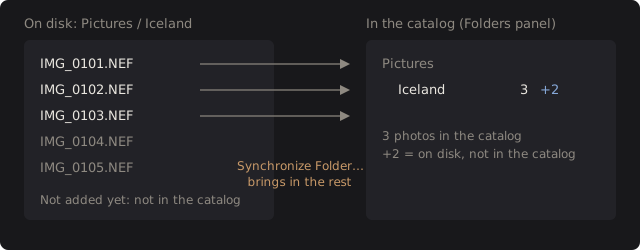
Section titled “See what is not in the catalog”A folder’s row shows its photo count. A +N after it means N files on disk that aren’t in the catalog. Point at it for the explanation. To bring them in, right-click the folder and choose Synchronize Folder….
Synchronize a folder
Section titled “Synchronize a folder”- Right-click a folder and choose Synchronize Folder….
- DarkRay compares the folder with the disk and lists what would change.
- Click Apply.

| Line | Means |
|---|---|
| New on disk (not in the catalog) | Files DarkRay doesn’t know. |
| Moved or renamed (relinked, edits kept) | A cataloged photo found at a new path; it keeps its edits, rating, keywords and collections. |
| Changed on disk (re-read; thumbnails rebuilt) | A file saved again by another program. |
| Missing (flagged; nothing is removed) | A cataloged photo whose file is gone. |
| Unclear matches (counted as new) | A file that could be more than one moved photo. Nothing is guessed. |
Import N new photos is checked by default. Uncheck it to apply the other changes and leave the new files out. Sync never deletes a photo from the catalog.
Automatic checks
Section titled “Automatic checks”DarkRay also checks quietly, without adding photos, when it opens a catalog, when you switch to one, when you click a folder, and when you come back to the window after working elsewhere. It relinks moved files, re-reads changed ones and flags missing ones. The status bar speaks only if something changed.
When a file is missing
Section titled “When a file is missing”A missing photo shows a warning badge and a faded thumbnail. Missing Photos, under Images, collects them and appears only while some are missing. A drive that is unplugged or a share that is offline counts as offline, not gone: a copy of the same file elsewhere never takes its place.
Locate a photo. Select the missing photo in the grid and choose Image › Locate Missing Photo…. Pick the file. DarkRay checks it is the same file, links it, and also relinks other missing photos in that folder (the status bar says “N more found nearby”). If the contents differ, it still links but warns; the edits are kept.
Locate a folder. When a whole folder moved or was renamed, right-click it (it shows in a warning color) and choose Locate Folder…, then pick its new place. Every photo under it follows. If the new place already holds other cataloged photos, DarkRay refuses and changes nothing.
Remove a folder from the library
Section titled “Remove a folder from the library”Right-click a folder and choose Remove from Library. DarkRay counts the photos and asks, with Cancel as the default. Their edits, ratings, keywords and collection membership go with them; files on disk are never deleted. A separately added subfolder keeps its photos.
Other folder commands
Section titled “Other folder commands”- Show Parent Folder adds the folder above, so the panel shows it. It adds no photos.
- Right-click a drive and choose Root Folder Display to show the folder name only, the path from the drive, or the folder and its path.
- Show in File System, New Folder…, Rename Folder… and Move Folder… are on the next page, Move and rename.
Technical details: how DarkRay recognizes a moved file
Each photo records the file’s size, modified time, its file ID on the drive and a fingerprint (a hash of its size and its first and last 64 KB). When a file disappears and a new one appears, DarkRay matches them by file ID and size, then by fingerprint, then by name and size. A match that isn’t unique is added as new and the old row flagged missing. Sync follows no symbolic links or junctions. An unchanged folder of 10,000 files takes about 0.1 seconds to check.
Because thumbnails are filed by photo number and other caches by fingerprint, a moved file keeps them and nothing is rebuilt.